Showing posts with label Linux - LVM. Show all posts

Thursday, October 25, 2012

How to find wwn in Redhat Linux?

How to find wwn in Redhat Linux?

a.    Below is the simple command to find WWN on Redhat servers.

systool -c fc_host –v

# systool -c fc_host -v | grep "port_name"
    port_name           = "0x5001438001347fdc"
    port_name           = "0x5001438001347fde"
    port_name           = "0x50014380013471f0"
    port_name           = "0x50014380013471f2"
#

b.    Below is the simple steps to find WWN in Linux.

Step 1:  cd /sys/class/fc_host
Step 2:  cd to the host# directory.
Step 3: cat node_name

Useful command to find to list the FC Adapter

lspci | grep -i Fibre


c.    To find WWN on linux with Emulex:
If you find difficult to find WWN on linux with Emulex HBA use below hbacmd to list the HBAs. This only available if hbanyware installed.

cd /usr/sbin/hbanyware
[root@tilak_phy01 hbanyware]# ./hbacmd ListHBAs

Manageable HBA List
Port WWN   : 11:00:00:00:d9:58:bf:92
Node WWN   : 10:00:00:00:b9:58:ba:92
Fabric Name: 20:3f:01:04:51:a1:71:00
Flags      : 1100a980
Host Name  : tilak_phy01
Mfg        : Emulex Corporation

Saturday, September 15, 2012

Linux LVM - Creating LV and mounting it


We had created a VG already here, we are going to use that VG to create some LVs or filesystems on it.

At first going to look for the VG size and free space available, vgdisplay and vgs commands will do that for us,


Here we find that only one VG is available on the server. If there are many VGs and if you want the details of the particular VG, you can use vgs or vgdisplay .

Currently i do not have any LVs available on the server apart from the root / filesystem.


We also have other useful commands to verify PV, VG and LV (pvscan ; vgscan ; lvscan), just for additional information.


Ooops ok.. thanks for your patience, lets start creating LVs.

There are several methods of creating a LV, which will be discussed later. The most commonly used default method of creating LV as below,

Syntax:
lvcreate -L -n

Example:
lvcreate -L 100M -n newLV1 newVG

So, now the LV is created successfully.

To verify,


So now we had created an LV successfully and verified.

Now the next step is to format the filesystem before mounting it to a mount point.

The device can formated in many different types, latest redhat/centOS versions has ext4.

Command used is mkfs.ext4.

The version which i use, do not have ext4 type format. So we are going to format it with ext3.


To format the LV, we need to know the complete path of the LV device created. Which can be seen in lvdisplay and lvscan outputs from the previous and below screen shots in this post.


Note the "newLV1" linked to "/dev/mapper/newVG-newLV1" which will be the one will be used as the device path for the mount point, even if you use /dev/newVG/newLV1. This can be identified in "mount -l" output after mounting it to a mount point.

Current "mount -l'  output


Also the formatted filesystem type will also be verified with the "mount -l" command only after mounting it to a mount point.

Lets start formatting the LV device and mount it to a mount point.

Syntax:
mkfs.ext3

Example:
mkfs.ext3 /dev/newVG/newLV1


Create a mount point, make a directory which is going to be a mountpoint for this LV. Which can be any path and located any where in the server.

I am going to create it in / directory itself. Which is /newFS.

mkdir /newFS


Mounting it to the created directory, which is called as the mount point.

mount /dev/newVG/newLV1 /newFS


Verify with df -h before and after mounting the filesystem, also with "mount -l".


After Mounting, from "mount -l" outptut.
/dev/mapper/newVG-newLV1 on /newFS type ext3 (rw)

So now successfully mounted the created filesystem. One last and final step is to we need to add this mount point and filesystem details in /etc/fstab for automount while booting.

Verifying for the current /etc/fstab entry.


Edit the /etc/fstab file and add the new mountpoint as below.


That ends the entire LVM.

Quick Recap of complete LVM


Friday, September 14, 2012

Linux LVM - Creating VG


For creating a VG we need free PVs, i am going to use the PVs created from my previous post,

Below are the PVs going to be used for the new VG, make a note of the attributes on the below output,


 1. Command to create VG with above PVs /dev/sdc1 and /dev/sdc2,

vgcreate
Example: vgcreate newVG /dev/sdc1

Here i want 2 devices to be added to the VG,

vgcreate newVG /dev/sdc1 /dev/sdc2


2. Verify the created VG,

with pvs and pvdisplay command,


with vgs and vgdisplay,


Linux LVM - Creating PVs

Linux LVM - Creating PVs

How to create Physical volume (PV)?

Before creating a PV verify if it is formatted with appropriate partition's system id, click here for the previous post how to format with Linux LVM partion id?

We are going to create a PV which is based on the disk formatted on my previous post.

Created 2 partitions on /dev/sdc. To display it use fdisk -l /dev/sdc


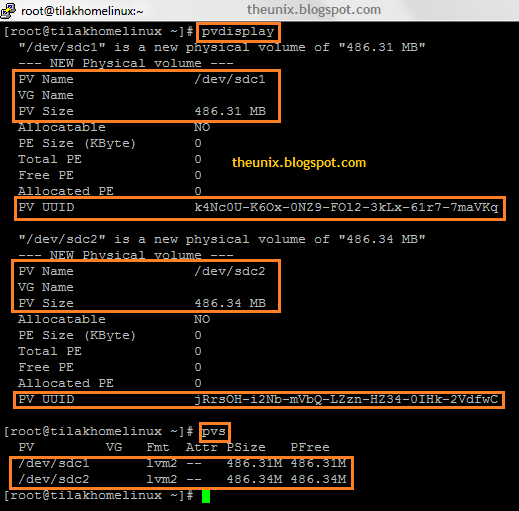
1. Execute pvdisplay or pvs commands to check and make a note of the previously created physical volumes,

I had no PV created already, so nothing displayed below,


2. So here is the simple command to create the PVs, each partitions mentioned below are 500MB.

pvcreate /dev/sdc1
pvcreate /dev/sdc2


3. Verifying the created PVs with pvdisplay and pvs commands,

PVs created successfully,


For creating VG click here.

Format a new disk for Linux LVM

Format a new disk in Linux LVM

1. Find the new disk from fdisk -l,


2. Format the disk using fdisk command. I am going to format the device /dev/sdc with 2 partitions.


Used the below options,

For first partition /dev/sdc1

a) Command (m for help): n  -----> New Partition

b) Command action
   e   extended
   p   primary partition (1-4)
p -----> Primary Partition

c) Partition number (1-4): 1
First cylinder (1-130, default 1):
Using default value 1
Last cylinder or +size or +sizeM or +sizeK (1-130, default 130): +500M -----> last cylinder we have a option by mentioning the size and create a partition instead of end cylinder number.

d) Command (m for help): t ----> To toggle the system type of the partition, here the filesystem type we need is Linux LVM
Selected partition 1
Hex code (type L to list codes): 8e
Changed system type of partition 1 to 8e (Linux LVM)
  
e) Command (m for help): p

Disk /dev/sdc: 1073 MB, 1073741824 bytes
255 heads, 63 sectors/track, 130 cylinders
Units = cylinders of 16065 * 512 = 8225280 bytes

Device Boot      Start         End      Blocks   Id  System
/dev/sdc1               1          62      497983+  8e  Linux LVM
For Second Partition,

Command (m for help): n
Command action
   e   extended
   p   primary partition (1-4)
p
Partition number (1-4): 2
First cylinder (63-130, default 63):
Using default value 63
Last cylinder or +size or +sizeM or +sizeK (63-130, default 130): +500M

Command (m for help): t
Partition number (1-4): 2
Hex code (type L to list codes): 8e
Changed system type of partition 2 to 8e (Linux LVM)

Command (m for help): p

Disk /dev/sdc: 1073 MB, 1073741824 bytes
255 heads, 63 sectors/track, 130 cylinders
Units = cylinders of 16065 * 512 = 8225280 bytes

   Device Boot      Start         End      Blocks   Id  System
/dev/sdc1               1          62      497983+  8e  Linux LVM
/dev/sdc2              63         124      498015   8e  Linux LVM


Command (m for help): w -----> To write all the modification at the end.
The partition table has been altered!

Calling ioctl() to re-read partition table.
Syncing disks.
[root@tilakhomelinux ~]# partprobe -----> informs the operating system kernel of partition table changes, by requesting that the operating system re-read the partition table.

Scan and Detect a new disk added from VMware to a Linux VM.

Scan and Detect a new disk added from VMware to a Linux VM

1. Before scanning a VMware SCSI disk, make a note of an already available disks on the server with "fdisk -l" command and the LUN ids from "cat /proc/scsi/scsi" file.


 2. Check how many scsi hostid's present in "ls -l /sys/class/scsi_host". I had only one scsi hostid (host0) present in the server as below,


3. Now lets scan and detect the VMware Scsi disk assigned to this server with the below command,

echo "- - -" > /sys/class/scsi_host/hostx/scan - where x is the hostid from the "ls -l /sys/class/scsi_host" output.

Had executed the below since i had only one hostid "host0".

echo "- - -" > /sys/class/scsi_host/host0/scan


4. For the servers who have more scsi host id's, execute the below forloop script to scan the new disks.

"for a in `ls /sys/class/scsi_host`; do echo $a; echo "- - -" > /sys/class/scsi_host/$a/scan; done"

5. Now verify the new disk on the server with "fdisk -l" command and the LUN ids from "cat /proc/scsi/scsi" file.


6. At next we will format the new disks in Linux LVM and create a FileSystem. 

Wednesday, September 12, 2012

Redhat Linux - Finding the filesystem type of a partition in linux

Finding the filesystem type of a partition in linux

To find the type of filesystem a partition or a media is of we can use the commands "df" or "mount".

Using df 

$ df -T
Filesystem    Type   1K-blocks      Used Available Use% Mounted on
/dev/sda1     ext4    53067292  47601336   2770228  95% /
tmpfs        tmpfs      127140         0    127140   0% /lib/init/rw
udev         tmpfs      121484       220    121264   1% /dev
tmpfs        tmpfs      127140         4    127136   1% /dev/shm

The column with the heading "Type" gives the filesystem type. So the partition /dev/sda1 is of type ext4

To find the filesystem type of a specific partition pass the partition as the argument.  


$ df -T /dev/sda1
Filesystem    Type   1K-blocks      Used Available Use% Mounted on
/dev/sda1     ext4    53067292  47601332   2770232  95% /


Using mount 

$ mount
/dev/sda1 on / type ext4 (rw,errors=remount-ro)
tmpfs on /lib/init/rw type tmpfs (rw,nosuid,mode=0755)
proc on /proc type proc (rw,noexec,nosuid,nodev)
sysfs on /sys type sysfs (rw,noexec,nosuid,nodev)
udev on /dev type tmpfs (rw,mode=0755)
tmpfs on /dev/shm type tmpfs (rw,nosuid,nodev)
devpts on /dev/pts type devpts (rw,noexec,nosuid,gid=5,mode=620)
fusectl on /sys/fs/fuse/connections type fusectl (rw)
binfmt_misc on /proc/sys/fs/binfmt_misc type binfmt_misc (rw,noexec,nosuid,nodev)
none on /proc/fs/vmblock/mountPoint type vmblock (rw)

As listed the partition /dev/sda1 is of type ext4.
We can find the specific partition type by combining mount with grep.  

$ mount | grep /dev/sda1
/dev/sda1 on / type ext4 (rw,errors=remount-ro)

Pages